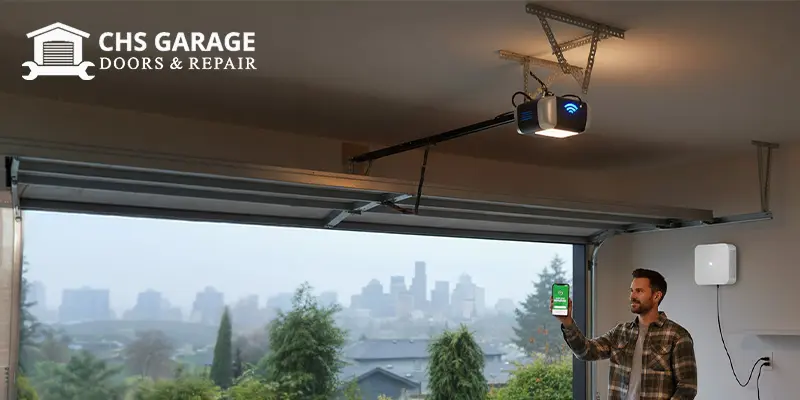
Smart openers are great until the app spins, the door status freezes, or remote access works only when you are standing in the driveway. Seattle’s dense neighborhoods, moisture, and lots of nearby networks can make garage Wi-Fi flaky. This guide walks you through the fixes that actually work, from efficient checks to rock solid router settings and smart placement that keeps your opener online in any weather.
What a Healthy Connection Looks Like
A reliable setup gives you direct open and close commands, accurate door status, and notifications that arrive within seconds. In your opener app, signal quality should read good or better, with no frequent re-auth prompts or phantom offline alerts. If you are seeing delayed commands, a red offline badge, or status stuck on unknown, start with the steps below.
Efficient Wins in Five Minutes
-
Power cycle in the right order
Unplug the modem, then the router, then the opener. Wait 60 seconds. Plug in the modem, wait for solid internet, plug in the router, then the opener. This refresh clears stale IP leases and hung radios. -
Move the phone test
Stand by the opener and check your phone’s 2.4 GHz Wi-Fi. If your phone struggles there, the opener will too. You need stronger coverage or cleaner spectrum in the garage. -
Check network name and password
Openers only join the 2.4 GHz band on most models. Make sure the 2.4 GHz SSID and password you typed match exactly and are under 32 characters with no special characters the opener might reject. -
Confirm the door sensors
Some apps limit actions if safety sensors are faulted. If you see an odd amber or yellow sensor light after cleaning or moving items, run through this guide to correct it: garage door sensor light yellow.
Router Settings That Stabilize Smart Openers
Smart openers are simple clients. Give them a stable, low-noise 2.4 GHz lane and they behave perfectly.
-
Split SSIDs
Use different names for 2.4 and 5 GHz. Many mesh systems band-steer too aggressively and can drop the opener during roaming events. -
Channel planning
Lock 2.4 GHz to channel 1, 6, or 11. Pick the quietest one after a scan in your router app. Auto can hop at the worst moments. -
Security mode
Set WPA2-PSK (AES). Avoid WPA3 only, WEP, or mixed TKIP which some opener radios dislike. -
DHCP reservations
Reserve an IP for the opener’s MAC address. This prevents address shuffles that look like random offline events. -
Disable client isolation
Some guest networks block device to cloud or device to device traffic. Keep the opener on your main or IoT VLAN with internet access. -
Turn off 2.4 GHz “ax only” modes
Legacy 802.11b/g/n support ensures compatibility with older radios inside many smart openers.
Boosting Signal to the Garage
Seattle homes often put the ISP modem on one side of the house with the garage on the other. Moisture-heavy walls and metal doors do not help. Improve the path like this:
-
Relocate the mesh node
Place a node on the interior wall closest to the garage at chest height. Avoid tucking nodes behind TVs or inside cabinets. -
Use wired backhaul if possible
Ethernet to a garage node removes Wi-Fi hops and cuts latency. -
Angle matters
The opener’s Wi-Fi module is usually on the motor head. Rotate the router’s antenna or move the node a few feet and retest. Small moves can add big signal gains. -
Reduce RF noise
Noisy LED bulbs can trash radio performance. If range drops when the opener light is on, swap to opener-safe LEDs and reroute the dangling antenna wire straight down.
App Level Fixes That Stick
-
Re-add the device after a reset
Use the opener’s Wi-Fi learn or reset button, then re-onboard in the app. Delete old device entries to avoid ghost conflicts. -
Update firmware
Check both the opener app and your router for updates. Firmware fixes many roaming and DNS bugs. -
Log out and back in
Token refresh clears stale sessions that cause status lag. -
Check notification permissions
On iOS and Android, allow alerts and background refresh so you see open and close events professionally.
Moisture, Power, and Wiring Tips for the Pacific Northwest
-
Keep electronics dry
Seal gaps and refresh the bottom seal so mist does not reach the opener’s board. If you see puddles or spray near the threshold, this guide on how to seal garage door gaps will help. -
Battery backup health
A weak battery does not cause Wi-Fi drops directly, but frequent brownouts do. Test your backup pack twice a year so the radio never browns out during storms. -
Surge protection
Add a UL listed surge protector at the ceiling outlet. Line spikes can scramble radios and corrupt settings. -
Cable discipline
Keep low-voltage sensor wires away from power cords and LED power supplies. Parallel runs can act like antennas.
Common Error Scenarios and Cures
App says offline, wall button still works
Router moved to DFS channel or band steering pushed the client to 5 GHz. Split SSIDs, lock 2.4 GHz to channel 1, 6, or 11, and rejoin.
Works when the door is open but not closed
The metal door may shield the opener’s radio. Move a mesh node closer, add a node on Ethernet, or slightly reposition the opener’s external antenna if available.
Keypad works, remote works, app slow
Cloud token or DNS issue. Reboot modem and router, then sign out and in. Assign a reserved IP and specify reliable DNS on your router.
Random late-night openings in the log
Usually phantom repeats from a sticky remote or shared app access. Replace remote batteries, clear old shared users in the app, and enable notifications so you see exactly what triggered the event.
Frequent re-onboarding prompts
Router is changing SSID, security mode, or password through auto-optimize features. Disable those optimizations and keep settings stable.
Security Best Practices While You Stabilize Wi-Fi
-
Vacation lock when traveling so radios stay on for monitoring but remotes are disabled.
-
Change app passwords if you shared temporary access with neighbors or contractors.
-
Do not leave the remote in the car. If a thief gets the fob and your network is unstable, you lose both physical and digital control.
-
Enable logs and alerts to catch odd behavior efficiently.
Pro Checklist If You Decide to Call for Help
When a technician arrives, have these ready:
-
Your router brand and model, where nodes live, and whether any node is wired
-
The opener brand and model, plus any recent error messages
-
A list of what you tried already and what changed the behavior
-
Photos of the opener, LED bulbs, safety sensors, and the nearest mesh node
With this info, a tech can efficiently isolate whether the issue is radio coverage, router configuration, or an opener radio that is failing.
FAQs
Do openers work on 5 GHz
Most do not. Plan for a clean, stable 2.4 GHz SSID.
Can I put the opener on my guest network
Only if the guest network allows internet for clients and does not isolate necessary cloud traffic. Many guest networks block exactly what an opener needs.
Will a Wi-Fi extender fix everything
Sometimes. Mesh nodes with wired backhaul are more reliable than old extenders that halve bandwidth.
What if I have a detached garage
Run Ethernet to a weather-safe access point or add a mesh node in the closest room of the house and another in the garage on wired backhaul.
Does metal siding or foil insulation block signal
Yes. Place a node in the same room as the opener or use wired backhaul to get radio inside the shielded space.
Key Takeaways
-
Openers prefer stable 2.4 GHz with simple security and a fixed channel
-
Mesh node placement and small antenna changes often deliver big results
-
Moisture control, surge protection, and clean wiring keep radios reliable
-
Split SSIDs, DHCP reservations, and firmware updates prevent random dropouts
-
If app errors remain, reset and re-add the device after stabilizing the network
With a few smart router tweaks and better coverage to the garage, your opener will feel direct and dependable again, even on the rainiest Seattle day.
When Wi-Fi connectivity issues persist after troubleshooting, the problem is often a failing logic board or outdated firmware. Our team provides garage door opener repair in Seattle and smart opener installation for homes ready to upgrade to a newer myQ-compatible unit.